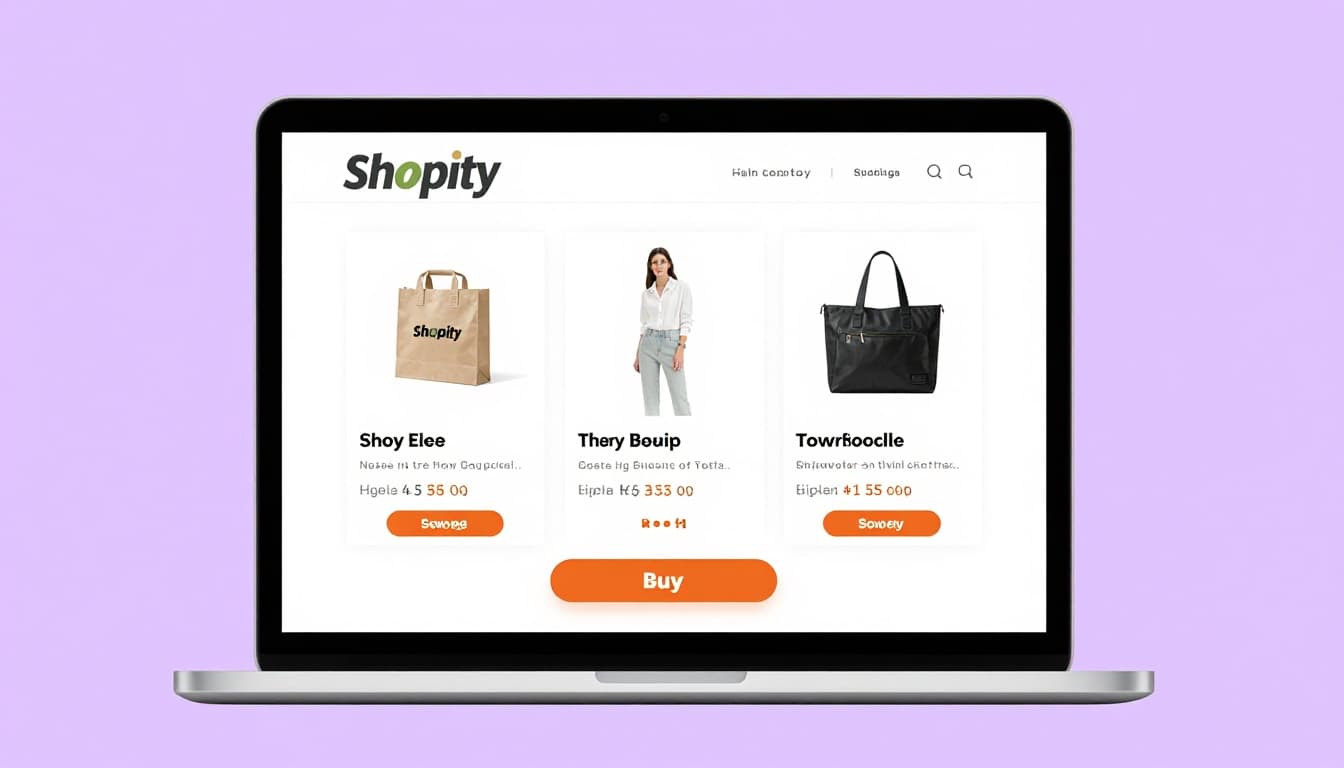
Shopify for Creators: How to Launch Your Own Online Store in a Weekend Without Any Tech Skills
If you are a content creator who has been relying solely on brand deals, ad revenue, or tips from your audience, you are leaving a significant amount of money on the table. Selling your own products — whether physical merchandise, digital downloads, or exclusive experiences — is one of the most powerful ways to diversify your income and build long-term financial stability. The good news is that launching your own online store has never been easier, and Shopify has emerged as the go-to platform for creators who want professional results without writing a single line of code. In this guide, we will walk through every step of launching a fully functional Shopify store in a single weekend, from choosing your theme to making your first sale.
Why Creators Should Sell Direct
The creator economy has matured to a point where relying exclusively on platform-based monetization is increasingly risky. Algorithm changes, demonetization waves, and shifting advertiser budgets can wipe out months of revenue overnight. When you sell products directly to your audience, you own the relationship, the customer data, and the profit margins. There are no middlemen taking a cut of your earnings beyond standard payment processing fees, and you are not at the mercy of any single platform's policies or whims.
Direct selling also deepens your relationship with your audience. When someone buys your product, they are making a deliberate investment in you and your brand. That creates a level of loyalty and engagement that passive content consumption simply cannot match. Creators who have launched their own stores consistently report higher average revenue per fan compared to those relying on ad revenue alone. Whether you sell printed artwork, branded apparel, recipe ebooks, or photography presets, your store becomes a hub where your most dedicated followers can support you in a tangible way.
Getting Started with Shopify: The Setup Walkthrough
Setting up a Shopify store begins with creating an account at shopify.com. Shopify offers a free trial period, which gives you enough time to build your entire store before committing to a paid plan. Once you have created your account, you will be guided through a brief onboarding process where you can name your store, set your currency, and choose your country of operation. Take your time with the store name — it should reflect your brand and be easy for your audience to remember.
After the initial setup, you will land on the Shopify admin dashboard. This is your command center for everything: products, orders, customers, analytics, and settings. The interface is intuitive and organized into clear sections along the left sidebar. Before you start adding products, it is worth spending a few minutes exploring the dashboard to familiarize yourself with the layout. Shopify also provides an extensive help center and a library of video tutorials that walk you through every feature in detail, so you are never truly stuck.
Choosing the Right Theme for Your Brand
Your store's theme determines how your shop looks and feels to visitors, and first impressions matter enormously in e-commerce. Shopify offers a selection of free themes that are professionally designed and fully responsive on mobile devices. For most creators just getting started, themes like Dawn, Craft, or Sense provide a clean, modern foundation that works across industries. If you want something more specialized, the Shopify Theme Store features premium themes ranging from forty to three hundred and fifty dollars as a one-time purchase.
When selecting a theme, prioritize simplicity and speed over flashy animations or complex layouts. Your audience is coming from social media, where they are accustomed to fast-loading, visually clean experiences. Choose a theme that puts your products front and center and makes navigation effortless. Most themes allow extensive customization through Shopify's drag-and-drop editor, so you can adjust colors, fonts, images, and section layouts without touching any code. Spend time matching your store's visual identity to your existing brand across social media so that the transition from your content to your shop feels seamless and familiar.
Adding Your Products: Physical and Digital
Adding products to your Shopify store is straightforward. Navigate to the Products section in your dashboard and click "Add product." You will be prompted to enter a title, description, images, pricing, and inventory details. For physical products like merchandise, apparel, or printed goods, you will also need to configure shipping options including weight, dimensions, and shipping zones. Shopify integrates with major carriers to calculate real-time shipping rates, or you can set flat-rate or free shipping thresholds.
For digital products — such as ebooks, presets, templates, courses, or music — you will need to install a digital delivery app. Shopify's own Digital Downloads app is free and handles the basics well, automatically sending download links to customers after purchase. For more advanced needs, apps like SendOwl or Sky Pilot offer features such as PDF stamping, streaming video delivery, and license key generation. Here is a quick comparison of product types and their considerations:
| Product Type | Shipping Required | Recommended App | Profit Margin |
|---|---|---|---|
| Physical Merch | Yes | Printful / Printify | 30-50% |
| Digital Downloads | No | Digital Downloads | 80-95% |
| Online Courses | No | SendOwl / Thinkific | 85-95% |
| Print-on-Demand | Yes (handled by supplier) | Printful | 25-40% |
| Memberships | No | Bold Memberships | 90-95% |
Write compelling product descriptions that speak to your audience's desires and pain points rather than just listing features. Use high-quality images — at least three to five per product — showing different angles, contexts, and use cases. If you are selling digital products, create mockups that show how the product looks in use, such as a preset applied to a photograph or a template filled with sample content.
Setting Up Payments and Getting Paid
Shopify makes payment processing remarkably simple through Shopify Payments, its built-in payment gateway. By activating Shopify Payments, you can accept all major credit cards, Apple Pay, Google Pay, and Shop Pay without needing a third-party payment processor. Transaction fees vary by plan but are competitive with industry standards, starting at 2.9% plus thirty cents per transaction on the Basic plan. If you prefer to use an external gateway like PayPal or Stripe, Shopify supports those as well, though additional transaction fees may apply.
To set up payments, go to Settings and then Payments in your dashboard. You will need to provide your banking information, tax identification number, and business details. Shopify will verify your identity and typically activates your account within one to two business days. It is also important to configure your tax settings at this stage, as Shopify can automatically calculate and collect sales tax based on your location and your customers' locations. Once payments are active, you can start accepting orders immediately, and payouts are deposited directly into your bank account on a regular schedule.
Connecting Social Media Shops
One of Shopify's greatest strengths for creators is its seamless integration with social media platforms. You can connect your Shopify store to Instagram Shopping, Facebook Shops, TikTok Shopping, and Pinterest to allow your audience to browse and purchase products without ever leaving their favorite apps. This reduces friction in the buying process and can dramatically increase conversion rates, since your followers do not need to navigate to a separate website to complete a purchase.
To set up Instagram Shopping, for example, you need a business or creator Instagram account connected to a Facebook Page, and you must comply with Instagram's commerce policies. Once approved, you can tag products directly in your posts, Stories, and Reels, turning your content into a shoppable storefront. TikTok Shopping works similarly through the TikTok sales channel on Shopify, allowing you to feature products in your TikTok profile and even during live streams. The key is to integrate shopping naturally into your content rather than making every post feel like an advertisement.
Marketing Your Store to Your Audience
Launching your store is only the beginning — you need a marketing strategy to drive consistent traffic and sales. Start with your existing audience by announcing your store across all your social media channels. Create dedicated content around your products, including behind-the-scenes looks at the creation process, unboxing videos, and customer testimonials. Email marketing is another powerful tool; use Shopify's built-in email features or integrate with platforms like Klaviyo or Mailchimp to build a subscriber list and send targeted campaigns.
Consider running a launch promotion to generate initial momentum. Limited-time discounts, bundle deals, or exclusive products for early buyers create urgency and reward your most loyal followers for supporting you from day one. Collaborate with other creators in your niche for cross-promotion, and leverage user-generated content by encouraging customers to share photos or videos of your products. Paid advertising through Facebook, Instagram, or Google can amplify your reach, but many creators find that organic promotion through their existing channels is more than enough to generate substantial revenue in the early stages.
Essential Apps to Install
Shopify's app ecosystem is one of its most powerful features, offering thousands of tools to extend your store's functionality. While you do not want to overload your store with unnecessary apps that slow down page load times, a handful of strategic installations can make a meaningful difference. Here are some must-have apps for creator-run stores:
| App | Purpose | Price |
|---|---|---|
| Klaviyo | Email marketing and automation | Free up to 250 contacts |
| Printful | Print-on-demand merchandise | Free (pay per order) |
| Judge.me | Product reviews and social proof | Free plan available |
| PageFly | Custom landing page builder | Free plan available |
| Vitals | All-in-one marketing suite | From $29.99/month |
Install apps one at a time and test them thoroughly before adding more. Pay attention to how each app affects your store's loading speed, as slow sites directly hurt your conversion rates. Read reviews from other merchants and prioritize apps that are well-maintained and regularly updated. Most apps offer free trials, so take advantage of those to evaluate whether each tool genuinely adds value before committing to a paid subscription.
Conclusion
Launching a Shopify store as a creator is no longer a daunting technical challenge reserved for those with coding skills or deep pockets. With a clear weekend of focused effort, you can go from zero to a fully functional, professionally designed online store ready to accept orders from your audience. The combination of Shopify's intuitive platform, its deep social media integrations, and its rich app ecosystem makes it the ideal choice for creators who want to own their revenue streams and build lasting businesses beyond content alone. Start with a small product lineup, listen to your customers, and iterate as you grow. Your audience already trusts and values what you create — now give them the opportunity to invest in it directly.