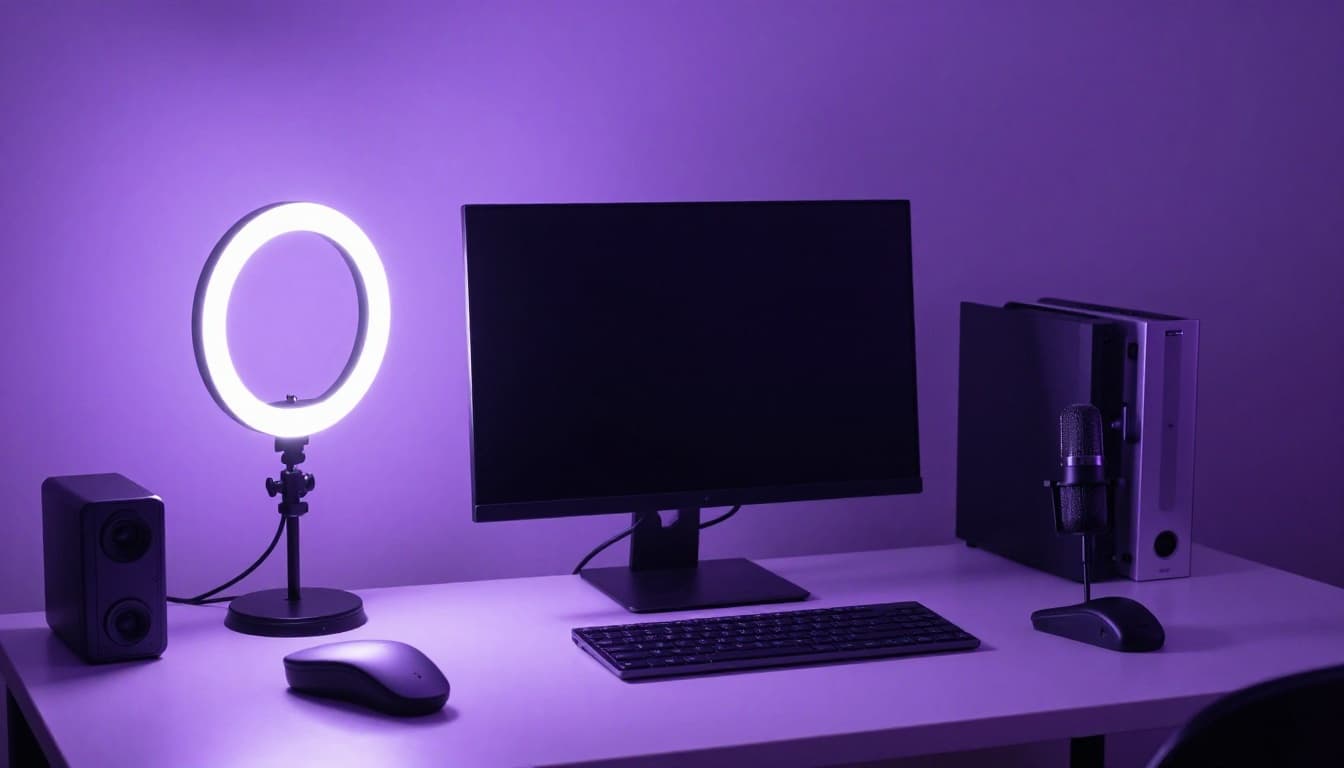
The Streaming Setup Guide: Essential Gear for Starting a Professional Stream Under $500
Starting a live stream in 2026 no longer requires thousands of dollars in professional equipment. The barrier to entry has dropped dramatically, and with careful, informed purchasing decisions, you can build a streaming setup that looks and sounds professional for under five hundred dollars. Whether you are planning to stream games on Twitch, host live workshops on YouTube, or broadcast creative sessions on TikTok, the fundamentals remain the same: you need a good camera, clear audio, flattering lighting, reliable software, and a stable internet connection. This guide walks you through every component, recommends specific products at budget-friendly price points, and explains how to configure everything so your first stream looks like it was produced by someone who has been doing this for years.
Why Your Streaming Setup Matters More Than You Think
First impressions in live streaming are merciless. Viewers typically decide within the first five to ten seconds whether they will stay or click away, and that decision is overwhelmingly influenced by production quality. A pixelated camera feed, echoing audio, or harsh unflattering lighting will drive viewers away before they ever hear what you have to say. This does not mean you need broadcast television quality, but you do need to clear a minimum threshold of professionalism that signals to viewers that you take your content seriously and that their time will be well spent watching you.
The good news is that the technology curve has been incredibly favorable for budget-conscious streamers. Camera sensors, microphone capsules, and LED lighting panels have all improved dramatically while prices have dropped. A two-hundred-dollar setup today outperforms a thousand-dollar setup from 2020 in almost every measurable way. The key is knowing which components to prioritize, where you can save money without sacrificing quality, and which trendy accessories are genuinely unnecessary for a beginner. This guide focuses on maximum impact per dollar, ensuring that every purchase you make contributes meaningfully to the quality of your stream.
The Camera: Your Visual Foundation
The camera is the centerpiece of your visual presentation, and you have more options than ever at the budget level. For most new streamers, a dedicated USB webcam remains the simplest and most cost-effective choice. The Logitech C920 has been a streaming staple for years and continues to deliver reliable 1080p video for around sixty dollars. However, if you want to step up in quality without breaking the budget, the Elgato Facecam MK.2 offers superior image quality, better low-light performance, and more granular controls for approximately one hundred and thirty dollars.
An increasingly popular alternative is using your smartphone as a webcam. Modern smartphones have cameras that rival or exceed dedicated webcams in quality, and apps like Camo and EpocCam allow you to connect your phone to your computer as a video source. If you already own a recent smartphone, this approach gives you excellent video quality at zero additional cost for the camera itself, freeing up budget for other components. You will need a phone mount or small tripod to position the device properly, which typically costs between fifteen and thirty dollars. Whichever option you choose, ensure your camera supports at least 1080p at thirty frames per second, as this is the minimum resolution that looks professional on modern streaming platforms.
Audio: The Most Important Investment
If there is one area where you should allocate the largest portion of your budget, it is audio. Viewers will tolerate mediocre video far more readily than they will tolerate poor audio. Echoing, tinny, or noisy sound is the single fastest way to lose an audience, and no amount of visual polish can compensate for bad audio. The good news is that excellent USB microphones are available at prices that would have been unthinkable a few years ago, and they require no additional audio interface or technical knowledge to set up.
The Samson Q2U is widely regarded as the best entry-level streaming microphone, offering both USB and XLR connectivity for around seventy dollars. This means you can start with a simple USB connection now and upgrade to a professional audio interface later without replacing the microphone. For creators who prefer a condenser microphone with a richer, more detailed sound, the Fifine K669 offers remarkable quality for approximately thirty dollars, though condenser microphones pick up more background noise than dynamic alternatives. Pair any microphone with a basic boom arm (twenty to thirty dollars) to get it close to your mouth and off your desk, which dramatically improves sound quality by reducing room reflections and keyboard noise.
Lighting: The Difference Between Amateur and Professional
Lighting is the component that most dramatically transforms the visual quality of a stream, yet it is often the most overlooked by beginners. Proper lighting eliminates harsh shadows, evens out skin tones, reduces camera noise by providing adequate illumination, and creates a visually pleasing image that keeps viewers engaged. The classic three-point lighting setup — a key light, a fill light, and a backlight — remains the gold standard, but you can achieve excellent results with a simpler two-light setup on a streaming budget.
A single key light positioned at a forty-five-degree angle to your face does the heavy lifting. Ring lights have become popular for this purpose, and options like the Neewer 10-inch ring light provide adjustable color temperature and brightness for around twenty-five dollars. For a more natural, flattering look, a small LED panel light like the Elgato Key Light Mini (approximately eighty dollars) or the Logitech Litra Glow (approximately fifty dollars) offers superior control and a more professional light quality. Adding a second, dimmer light on the opposite side to fill in shadows completes the look. Even a simple desk lamp with a daylight-balanced bulb can serve as an effective fill light, keeping costs minimal while dramatically improving your on-camera appearance.
The Complete Budget Gear List
Here is a recommended gear list that keeps your total investment under five hundred dollars while delivering professional-quality output:
| Component | Recommended Product | Price | Notes |
|---|---|---|---|
| Camera | Elgato Facecam MK.2 | $130 | 1080p60, excellent software controls |
| Microphone | Samson Q2U | $70 | Dynamic USB/XLR, great noise rejection |
| Boom Arm | TONOR T20 | $25 | Sturdy, adjustable, desk-mount |
| Key Light | Logitech Litra Glow | $50 | USB-powered, adjustable temp/brightness |
| Fill Light | Neewer LED Desk Lamp | $20 | Daylight-balanced, dimmable |
| Capture Card | Elgato HD60 X | $130 | 4K passthrough, 1080p60 capture |
| Green Screen | Foldable popup green screen | $35 | Wrinkle-resistant, portable |
| Headphones | HyperX Cloud Stinger 2 | $30 | Comfortable, closed-back, good isolation |
| Total | $490 |
If you are streaming content that does not require a capture card, such as creative work, talk shows, or music, you can remove that component and reallocate the budget elsewhere or simply save the money. Conversely, if you are using your smartphone as a camera, you free up one hundred and thirty dollars that could go toward a better microphone, upgraded lighting, or a second monitor.
Capture Cards: Do You Actually Need One?
A capture card is essential if you want to stream console gameplay or use a separate camera with HDMI output, but it is entirely unnecessary for many types of streaming. If you are streaming PC games, your computer handles both the game and the stream encoding, so no capture card is needed. If you are streaming creative work, podcasts, cooking, music, or any camera-based content using a USB webcam or smartphone, a capture card adds no value. Understanding this distinction can save you a significant portion of your budget.
For those who do need a capture card, the Elgato HD60 X remains the most popular and reliable option in the budget range, offering 4K passthrough to your monitor and 1080p60 capture to your streaming software. More affordable alternatives like the AVerMedia Live Gamer Mini and various generic USB capture cards are available for as low as twenty dollars, though they often come with trade-offs in reliability, software compatibility, and image quality. If console streaming is your primary focus, invest in a quality capture card from a reputable brand — the frustration of dropped frames, audio desync, and driver issues with cheap capture cards is not worth the savings.
Green Screen Alternatives for Small Spaces
The traditional large green screen mounted on a frame is impractical for many streamers who work in small rooms, shared spaces, or rented apartments where wall mounting is not an option. Fortunately, several alternatives exist that deliver comparable results without requiring permanent installation. Popup collapsible green screens, which fold down to the size of a large pizza box, can be deployed behind your chair in seconds and stored away when not in use. These typically cost between thirty and fifty dollars and work remarkably well with modern chroma key software.
Another approach is to skip the green screen entirely and rely on software-based background removal. OBS Studio, Streamlabs, and most streaming platforms now offer AI-powered background removal that works without any physical green screen at all. The quality has improved dramatically and is now sufficient for most streaming scenarios, particularly if you have good lighting that clearly separates you from your background. If your background is naturally tidy and visually appealing, consider using it as-is — many successful streamers have found that an authentic, lived-in background creates a more relatable and engaging viewing experience than a virtual replacement.
OBS Studio Setup and Configuration
OBS Studio is the industry-standard streaming software, and it is completely free. Setting it up correctly from the start will save you hours of troubleshooting later. After downloading OBS from obsproject.com, run the auto-configuration wizard, which will test your internet speed and hardware capabilities to recommend optimal settings. For most streamers starting out, 1080p at 30 frames per second with a bitrate between 4500 and 6000 kbps provides an excellent balance between quality and performance.
Configure your scenes and sources methodically. Create a main streaming scene with your camera feed, any game capture or screen share, and your overlays. Create a "Starting Soon" scene, a "Be Right Back" scene, and an "Ending" scene with appropriate graphics. Set up your audio sources, ensuring your microphone is assigned to the correct input and your desktop audio is captured for game sound or music. Apply a noise suppression filter to your microphone input — OBS includes a built-in AI-powered noise suppression filter called RNNoise that dramatically reduces background noise without noticeable quality loss. Test everything with a local recording before going live for the first time.
Internet Requirements and Desk Organization
A stable, fast internet connection is non-negotiable for live streaming. You need a minimum upload speed of ten megabits per second for a reliable 1080p stream, though fifteen to twenty megabits per second provides a much more comfortable margin. Use a wired Ethernet connection whenever possible — Wi-Fi introduces latency spikes, packet loss, and disconnections that can ruin a stream. If running an Ethernet cable to your streaming setup is impractical, a powerline adapter or mesh Wi-Fi system can provide a more stable connection than a standard Wi-Fi router at a distance.
Desk organization might seem like a minor concern, but it directly affects both your comfort during long streams and your on-camera appearance. Route cables behind your desk using adhesive cable clips. Position your microphone on a boom arm to free up desk space. Place your key light where it illuminates you without creating glare on your monitor. Keep your streaming area clean and visually uncluttered, as any portion of your room visible on camera becomes part of your brand presentation. A well-organized streaming setup is not just aesthetically pleasing — it reduces setup time, minimizes technical issues caused by loose connections, and creates a professional environment that puts you in the right mindset to perform.
Conclusion
Building a professional streaming setup for under five hundred dollars is not only possible in 2026 — it is easier than it has ever been. By prioritizing audio quality, investing in proper lighting, choosing the right camera for your needs, and configuring OBS Studio correctly, you can create a stream that stands shoulder-to-shoulder with creators who have spent significantly more on their equipment. The gear is important, but it is only the foundation. What ultimately makes a stream successful is the person behind the setup — your personality, your content, your consistency, and your willingness to improve with every broadcast. Start with the essentials, learn the fundamentals, and upgrade strategically as your channel grows. The best time to start streaming was yesterday; the second best time is right now.